
Integrations
Connect Zoho Mail
Zoho Mail is a first-class mail connection in Falconzo, not a workaround. Connect it once and your customer records start carrying the conversations behind them.
Why connect Zoho Mail
The detail that decides a sale is usually in an email nobody else has read.
When your mail is on Zoho and your customer list is somewhere else, keeping the two in step is manual work. Somebody has to remember to note what was agreed, and in a busy week that is the first thing to get dropped.
Connecting Zoho Mail to Falconzo removes the remembering. The conversation is attached to the record because Falconzo recognised the address, so the history builds itself while you get on with replying.
Each person connects their own Zoho mailbox, and an address that belongs to the whole business can be turned into a shared one so the team can work it together.
What connecting Zoho gives you
The full mail experience, not a cut-down version.
Zoho Mail, synced automatically
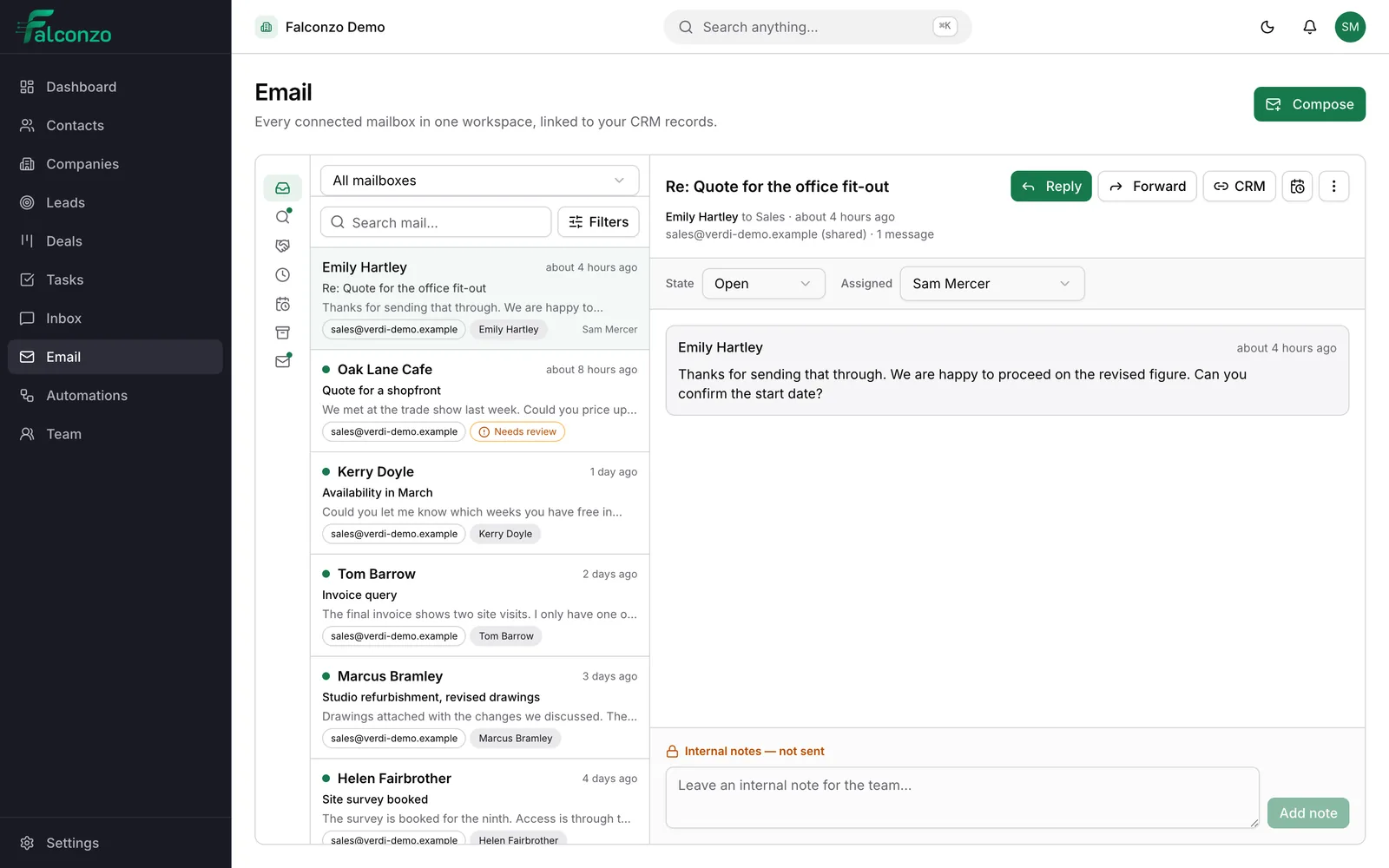
Your Zoho mailbox syncs into Falconzo on its own, and each conversation appears next to the contact, company, lead or deal it relates to.
Matched to the right record
Falconzo matches threads to CRM records by email address. A single exact match is linked automatically, and anything less certain is offered as a suggestion.
Reply without switching apps
Answer and forward from your Zoho address inside Falconzo. The conversation stays threaded in the recipient's mail client, so nothing looks unusual at their end.
Shared Zoho addresses
A team address can be turned into a shared mailbox, with an open, closed or snoozed state, assignment to a teammate and internal notes that stay inside the team.
Attachments when you need them
Files on a message are listed and downloaded on request. They stay with Zoho rather than being copied wholesale into another system.
Views that match the work
Filter to what needs review, what relates to open deals, what is waiting for a reply and what is due for follow-up today, instead of scrolling one long list.
How to connect
A short set-up in settings, undone from the same screen.
Choose Zoho in settings
Open the integrations settings in Falconzo and select Zoho as your mail provider.
Approve access on Zoho's screen
Zoho asks you to sign in and shows what Falconzo is requesting. You approve it on Zoho's own page and are returned to Falconzo.
Choose the history window
Decide how far back the first sync reaches: 30, 90 or 180 days. Ninety days is the default and covers most live conversations.
Review the suggested links
Certain matches are linked already. The rest wait in a review list, where you confirm the correct ones and dismiss anything that does not belong.
Access and control
Zoho asks the question, and you can change your answer
The connection is made on Zoho's own authorisation screen. You sign in there, approve the access, and Falconzo never handles your Zoho password. The credentials that come back are encrypted before they are stored and are never sent to your browser.
Disconnecting takes one action in settings. It deletes the stored credentials and stops the sync, and your contacts, companies, deals and notes are unaffected.
- A personal mailbox is visible only to the person who connected it
- Shared mailboxes are governed by your roles and permissions
- Mail is cleaned before display and remote images stay blocked by default
- Falconzo will not send to a contact or lead marked as opted out
What you end up with
A customer record with the email attached to it, kept up to date by the replies your team was sending anyway. When someone is away, the account does not go quiet, because the history is not locked in one person's inbox.
Read about the email workspace and the shared inbox, see the other providers on all integrations, or check the FAQ first.
See it with your own Zoho mailbox
Book a walkthrough and we will show you how your Zoho Mail and your customer records would work as one thing.