
Integrations
Connect Microsoft 365 and Outlook
If your business runs on Microsoft, your customer history is already in Outlook. Connecting it to Falconzo puts that history on the record where the team can use it.
Why connect Outlook
The problem with email is not that people fail to write things down. It is that nobody else can find what was written.
In most small teams the real customer file is a mailbox. Someone agreed a price, someone else promised a delivery date, and both facts are sitting in Outlook where only one person can see them.
Connecting Microsoft 365 to Falconzo turns those conversations into record history. You open a company and read the thread that explains where the account stands, instead of asking the colleague who happens to have it in their inbox.
It also removes the double handling. There is no separate step to log a call or paste an email in, because the mail is already there and already attached to the right customer.
What connecting Microsoft gives you
One connection, and all of this follows from it.
Microsoft 365 and Outlook mail
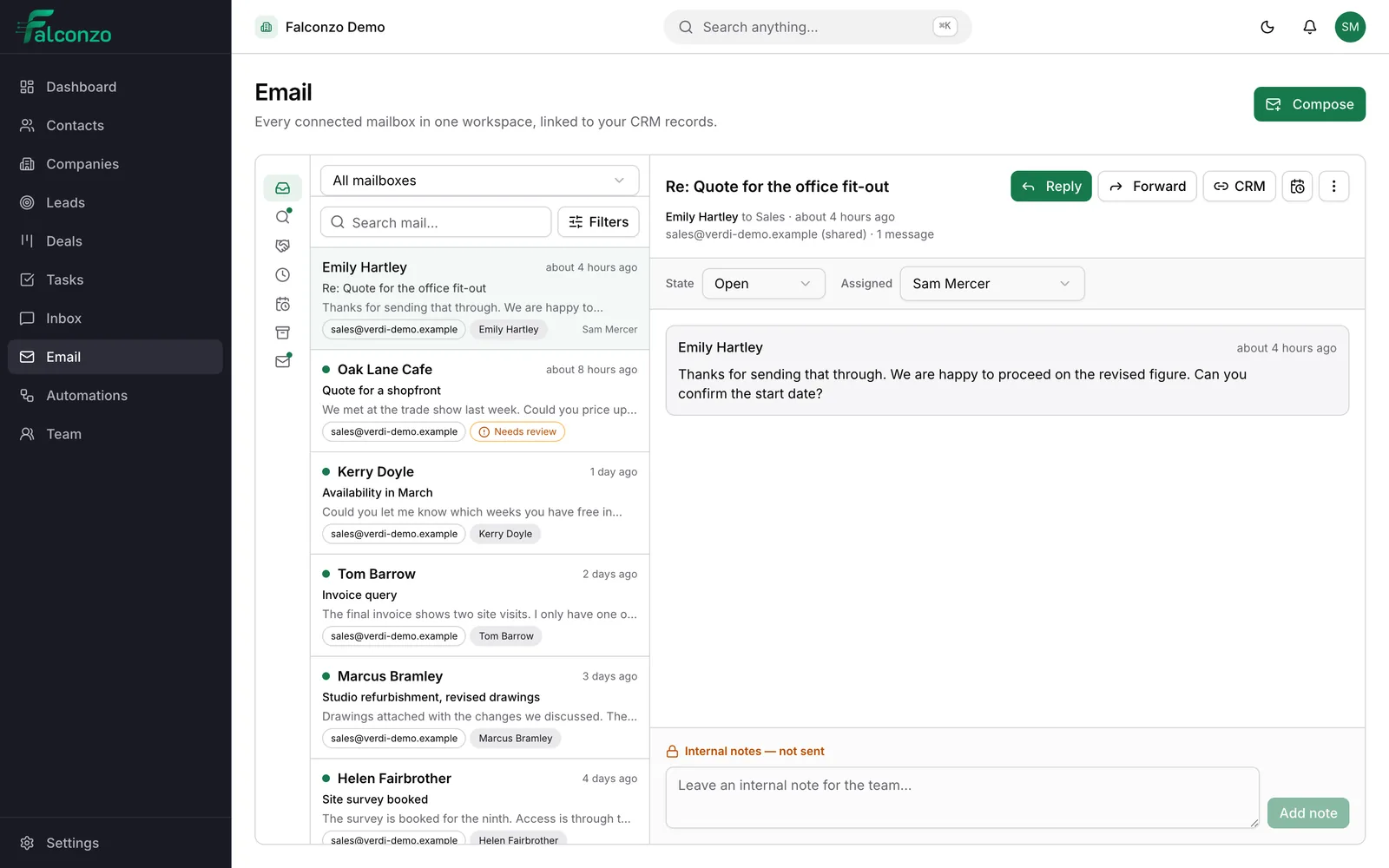
Your work mailbox syncs into Falconzo automatically, and each conversation shows up next to the contact, company or deal it belongs to.
Automatic linking, cautiously done
A thread that matches exactly one CRM record by email address is linked for you. Anything ambiguous waits in a review list for a person to decide.
Reply from your Outlook address
Answer and forward from inside Falconzo. The reply goes out from your own address and stays threaded in the recipient's mail client.
Shared team mailboxes
Turn an address such as sales@ or support@ into a shared mailbox with an open, closed or snoozed state, assignment to a teammate, and internal notes that never leave the team.
Attachments stay with Microsoft
Falconzo lists the files on a message and fetches one when somebody asks to download it, rather than keeping its own copy of everything you receive.
Templates and signatures
Each person keeps their own signature, and the team can share message templates for the replies you send over and over.
How to connect
Set it up in settings, and disconnect from the same place if you change your mind.
Choose Microsoft in settings
Open the integrations settings in Falconzo and select Microsoft as your mail provider.
Sign in with Microsoft
You are sent to Microsoft's own sign-in and consent screen, which shows what Falconzo is asking for. Approve it there and you are returned to Falconzo.
Set the first sync window
Decide how much history to bring in: 30, 90 or 180 days. Ninety days is the default and usually covers the deals currently in flight.
Confirm the suggestions
Falconzo links the certain matches and lists the rest under needs review, where you confirm or dismiss each one.
Access and control
Microsoft asks, you approve, and you can revoke it
Falconzo never sees your Microsoft password. The connection is made on Microsoft's own authorisation screen, and the credentials that come back are encrypted before they are stored and never sent to your browser.
Disconnecting is a single action in settings. It deletes the stored credentials and stops the sync, and everything you have built in the CRM stays untouched.
- A personal mailbox is visible only to the person who connected it
- Shared mailboxes follow your roles and permissions
- Messages are cleaned before display and remote images stay blocked by default
- Every change to a record is written to the audit log
What you end up with
A CRM that reflects what actually happened, kept current by the work your team was doing anyway. Handover stops depending on somebody's memory, and a new starter can read an account's history on their first morning.
Read more about the email workspace and the shared inbox, compare providers on all integrations, or check the FAQ before you connect anything.
See it with your own Outlook set-up
Book a walkthrough and we will show you how your Microsoft mailboxes and your customer records would work together.